
How to Disable Fast Startup via Group Policy Preferences
To disable the Fast Startup feature on Windows 10/11 machines across an Active Directory domain using Group Policy Preferences you can follow the steps below.
Fast Startup is a hybrid shutdown feature that speeds up boot time by saving system state to disk. However, it can interfere with windows features and with MyPC impact when we receive events from the client.
There is no direct Group Policy Object setting to disable Fast Startup, but it can be disabled by modifying the registry key HiberbootEnabled.
Steps to Disable Fast Startup via GPO Preferences
1. Open Group Policy Management Console (GPMC)
- On your domain controller, open Group Policy Management.
2. Create or Edit a GPO
- Right-click your target OU and choose Create a GPO or Edit an existing GPO.
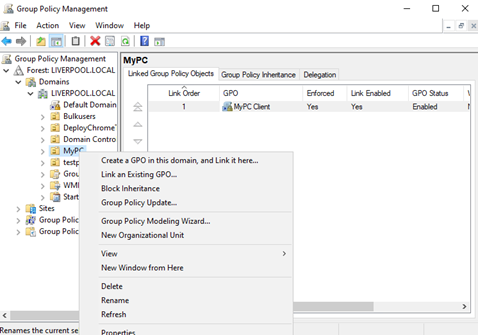
3. Navigate to Registry Preferences
- Go to: Computer Configuration → Preferences → Windows Settings → Registry
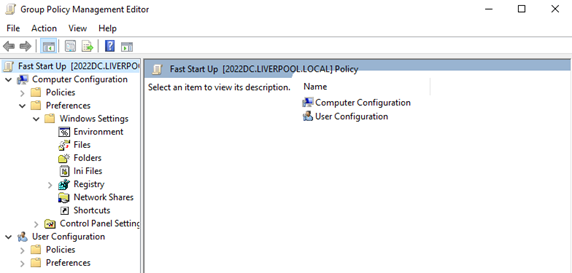
4. Create a New Registry Item
- Right-click Registry → New → Registry Item
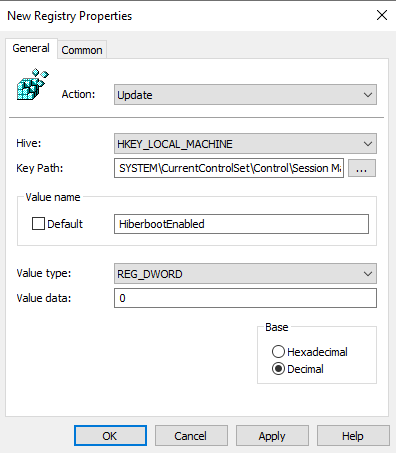
5. Configure the Registry Item
- Action: Update
- Hive: HKEY_LOCAL_MACHINE
- Key Path: SYSTEM\CurrentControlSet\Control\Session Manager\Power
- Value Name: HiberbootEnabled
- Value Type: REG_DWORD
- Value Data: 0
- Base: Decimal
6. Apply and Link the GPO
- Link the GPO to the appropriate OU containing the target computers.