
How to use Admin Rules
MyPC Admin Rules enable Super Admin/Owner users to grant specific permissions to Admin level users. These permissions allow Admin users to carry out essential day to day tasks within MyPC Cloud while maintaining appropriate access control.
Once configured, Admin users can be granted access to perform functions such as:
- Viewing reports (including exporting to CSV)
- Inviting MyPC Cloud local users
- Importing users
- Creating guest users
- Making resources (Rooms, Desks, Computers) available or unavailable
- Suspending or enabling users
How Admin Rules Work
Admin Rules are configured using User Tags combined with rule assignments.
User Tags can be:
- Manually created, or
- Synchronised from a directory service (e.g., Entra ID)
Example:
If you are using Entra ID, you can import an “Admins” group containing users who should have admin access in MyPC. You can then assign permissions to this group via Admin Rules.
If no such group exists:
- You can create a non-synchronised tag
- Assign the tag directly to individual users
Example Scenario
In this example, we will grant a user permission to:
- Suspend/enable users
- Mark computers as faulty (unavailable)
- Create guest users
- View computer reports
Example steps to create Admin Rules with a new tag
1. Locate the User
- Search for and select the user within MyPC Cloud
- Confirm the user currently has no tags assigned (if applicable)
2. Create a User Tag
- Click Tags and Booking Rules
- Select Add in the tags section
- Click Add New
- Give the tag a name and click the tick to save this
3. Configure the Tag
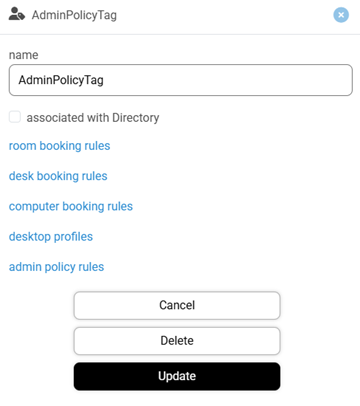
- Click on the newly created tag
- The tag configuration dialog will open
4. Add Admin Rules
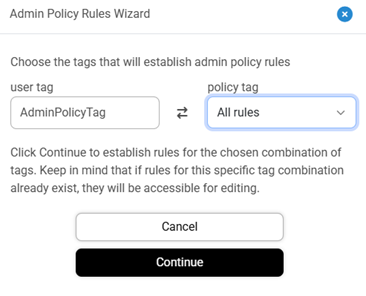
- Select admin policy rules
- Click Add New
- Under Policy Tag, select All Rules
- Click Continue
5. Configure Permissions
You will be presented with the available rule categories:
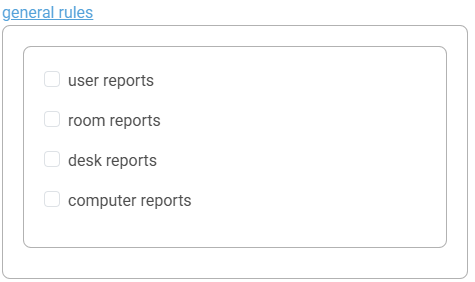
- General Rules
- Access to reports
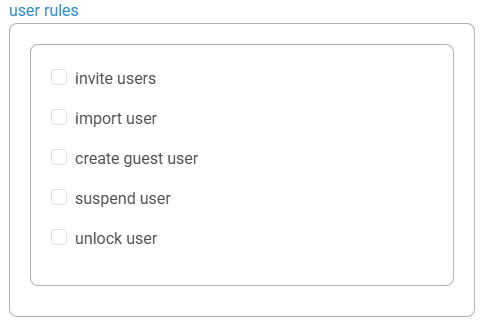
- User Rules
- Invite users
- Import users
- Create guest users
- Suspend/enable users
- Unlock users
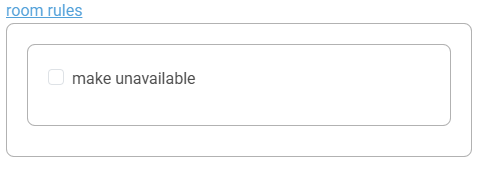
- Room Rules
- Make rooms available/unavailable
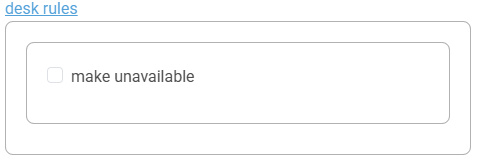
- Desk Rules
- Make desks available/unavailable
- Computer Rules
- Make computers available/unavailable
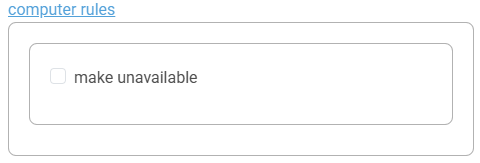
Expand each category and enable the permissions required for the Admin user.
6. Save Changes
- Click Update to save the rule configuration
- Ensure you update the user profile to apply the tag and rules
Admin User Experience
After configuration:
- Admin users will see the same interface as standard users
- Additional admin capabilities will become available based on assigned permissions
Important Notes
- Admin users can view full details of resources (e.g., computers), including all entries
- They cannot modify configuration settings beyond their granted permissions
- They can:
- Mark resources as available/unavailable
- Suspend or enable users
- Review booking and system rules for troubleshooting purposes