How to book a computer for a User as an Admin
Log in to MyPC Cloud and Choose Reserve -> Computers
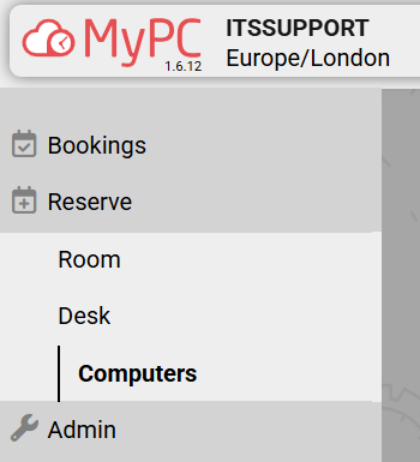
The Computer Booking Screen with appear
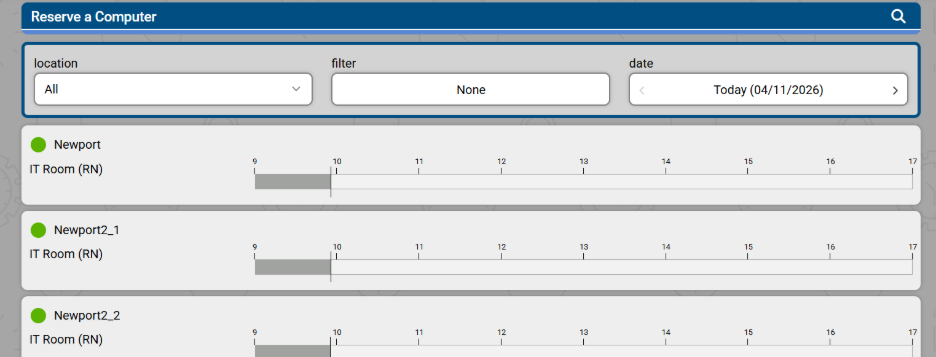
Using the top bar, you can narrow down your search to a specific location, filter, or date. The date will default to Today (today’s date)
Choose the computer you want to book for a user. The booking window will appear
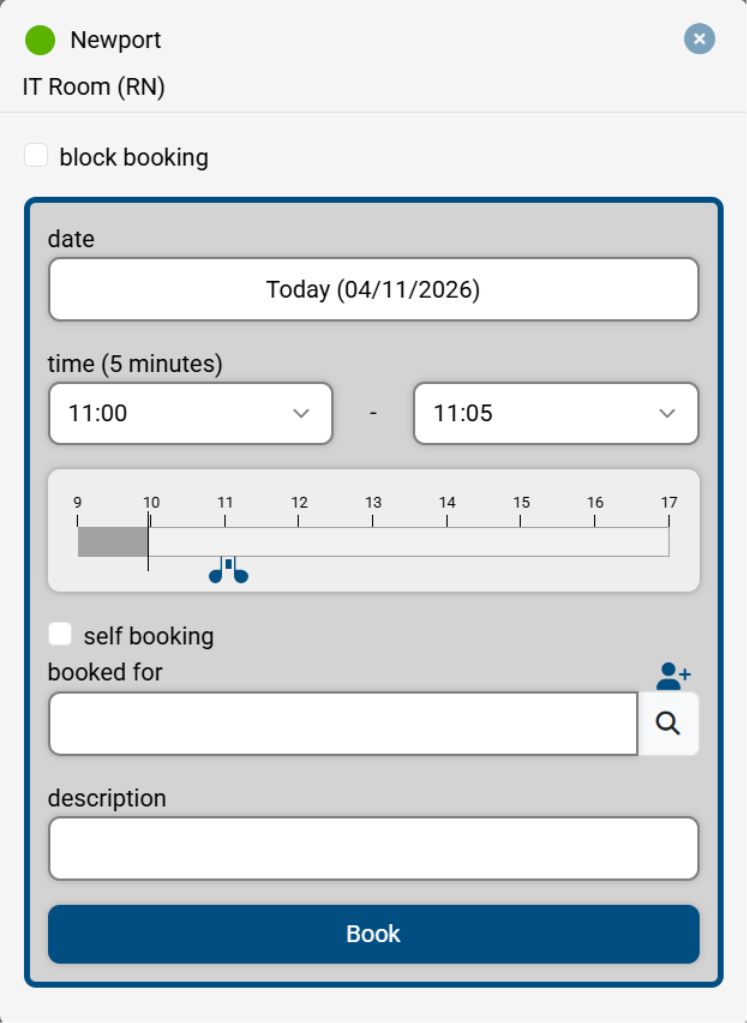
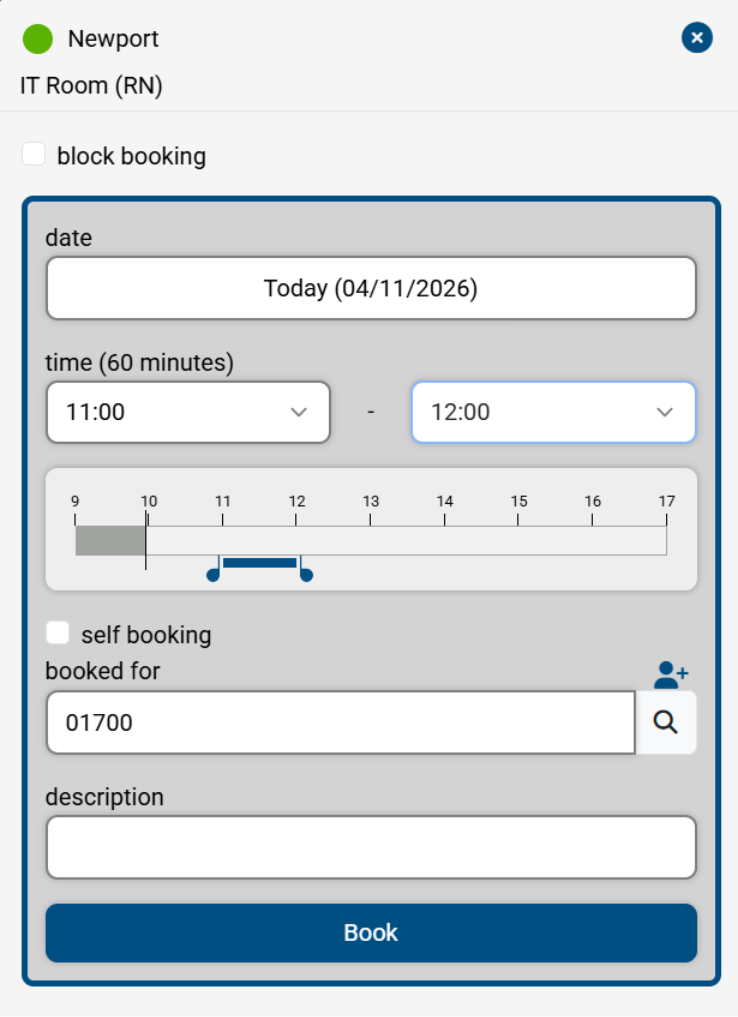
The start and end times for the booking can be entered in the time boxes

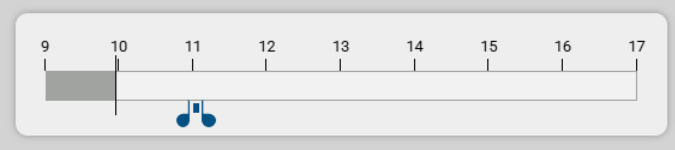
Alternatively, the sliders can be used to choose the start and end times of the booking
You can make a booking for yourself using the self booking option. Alternatively, enter the username/library card number for the user you are creating the booking for

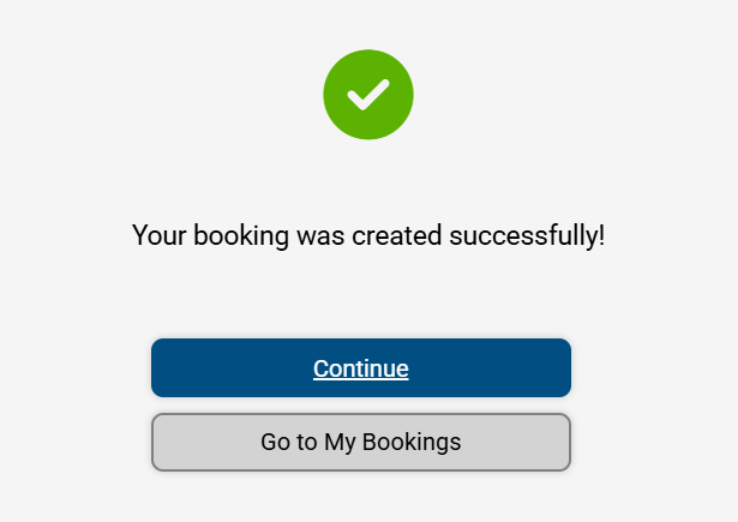
Add a description if required. A completed booking looks like this
Click on Book to complete the process